Quick Actions
Quick Actions is a smart add-on that provides instant, easy-to-use buttons for managing files directly in your library with a single click.

Key Features
-
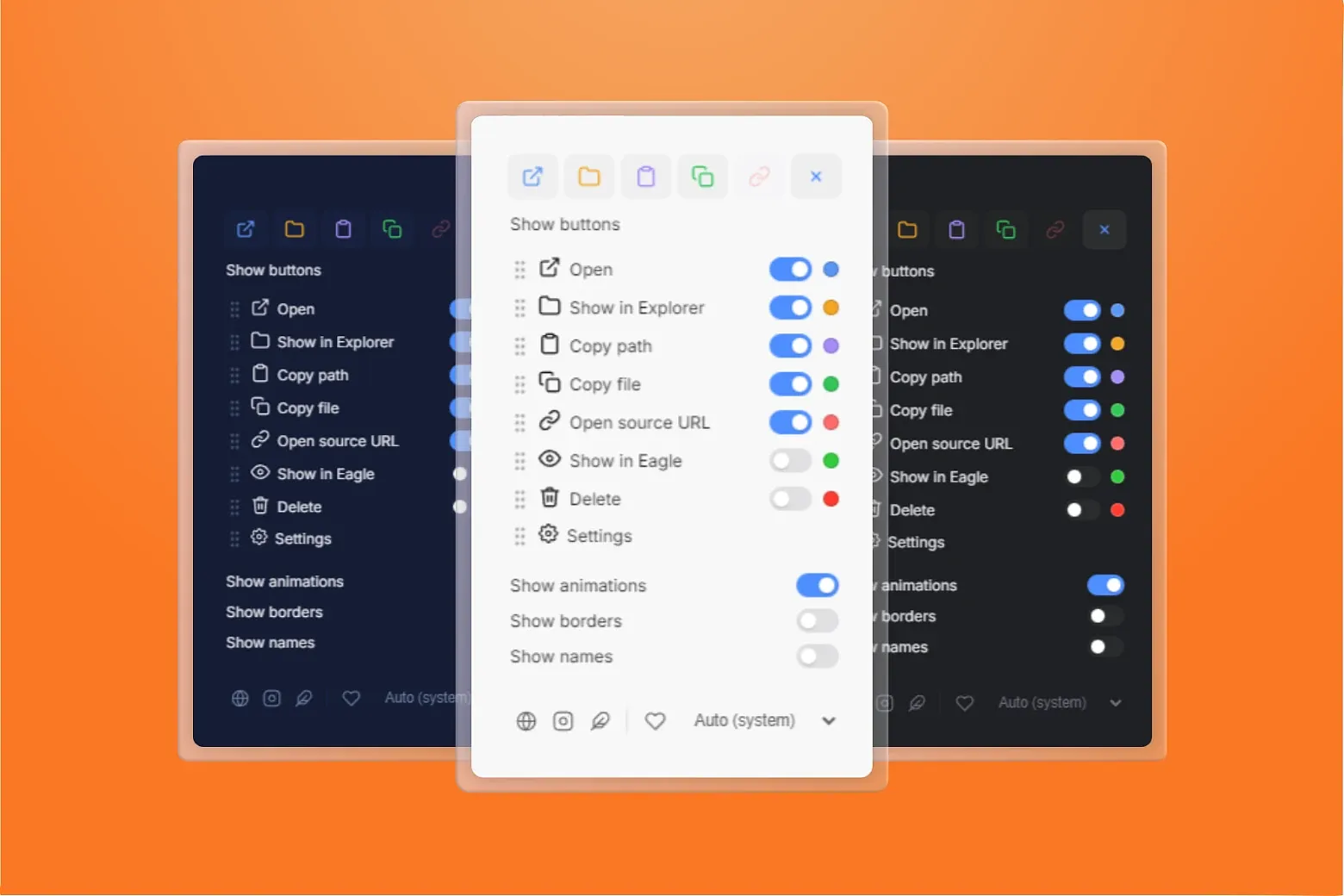
One-Click Actions – Perform common file operations instantly without leaving your Eagle library.
-
Fast File Management – Access essential actions directly from a dedicated panel.
-
Customizable Interface – Personalize your workflow by enabling or disabling actions, reordering buttons, choosing icon colors, and switching to a compact button layout.
-
System Integration – Works seamlessly with your operating system and Eagle environment.
-
Smart Workflow Boost – Designed to save time and reduce repetitive tasks.
-
Multi-language Support – Available in 13 languages
How It Works
1. Install the plugin in Eagle.
2. Select any file in your library.
3. The Quick Actions panel appears on the right side.
4. Click the desired action to execute it instantly.
Important: If you enable the Delete action in Settings, clicking Delete immediately moves the currently selected Eagle item to Trash without a confirmation prompt.
[Fix] Fixed security vulnerability in path handling by replacing child_process.exec with safe native shell openPath API.
[Add] Added support for additional file formats
[Update] Updated app and icon
[Fix] Fixed visual flashing on startup by deferring UI rendering.
[Fix] Fixed inspector layout to maintain a stable minimum height when switching items, preventing noticeable shrinking and expansion of the button area.
[Improvement] New design options added: enable or disable button animations and enable or disable button borders.
[Improvement] A new action button was added: Delete, allowing file removal.
[Optimization] Button animations have been optimized for better performance
[Fixed] The disabled design state of the Open Source URL button was not displayed when animations were enabled.
[Fixed] Themes now correctly inherit the theme defined in Eagle settings.
Initial Release:
We are pleased to announce the first stable release of Quick Actions for Eagle. This version introduces a streamlined and highly customizable action panel designed to improve file management directly within your library.
Highlights:
-
Dedicated Quick Actions panel integrated on the right side of Eagle
-
Six built-in standard actions available out of the box:
-
Open files in the system’s default application
-
Reveal the file location in the system file explorer
-
Copy the full file path to the clipboard
-
Copy the entire file to the clipboard
-
Generate a shareable file URL
-
Open the file directly inside the Eagle library
-
-
Dynamic theme support with automatic adaptation to:
-
Light and Dark modes
-
Eagle blue, purple, and gray themes
-
System-based adaptive colors
-
-
Flexible configuration options:
-
Enable or disable individual actions
-
Customize the order of action buttons
-
Automatic language detection based on Eagle setting
-